A list is a secondary audience type in Pinpointe. Lists allow you to "carve out" a sub-population of your database contacts based on some criteria, including certain custom field values or contact engagement behavior, such as has/has not opened a particular email.
You may have as many lists as you require to manage and market to your database(s) population. A contact may appear in a specific list only once, but they can be in an unlimited number of lists.
Lists are static, meaning Pinpointe does not add / subtract contacts from a list based on rules criteria. You, as the user, control who is added to / removed from a list via contact deletion in the UI or via API commands. Contacts can also be removed from lists as part of a Journey action.
NOTE: It is highly recommended you read the "New UI Basic Functions Overview" article first, as it provides an overview of all Pinpointe audience types and how the various pages and sections are accessed and structured.
TABLE OF CONTENTS
There are several ways to access the Lists page in the Contacts Management section.
- Select the "Manage Lists" option under the main "Contacts" menu. This will take you directly to the Lists page.
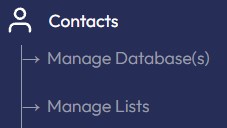
- Select the "Manage Database(s)", "Manage Segments", "Search" or "Master Unsubscribe" options under the main "Contacts" menu. This will take you directly to the respective page, where you can then select "Lists". Ex: Selecting "Manage Segments":

Creating a new list
To create a new list, you click the "Create" button at the top right of the List page. This brings up a modal on the right side of the page comprised of a single pane with two input fields.
- Name
- Description (optional)
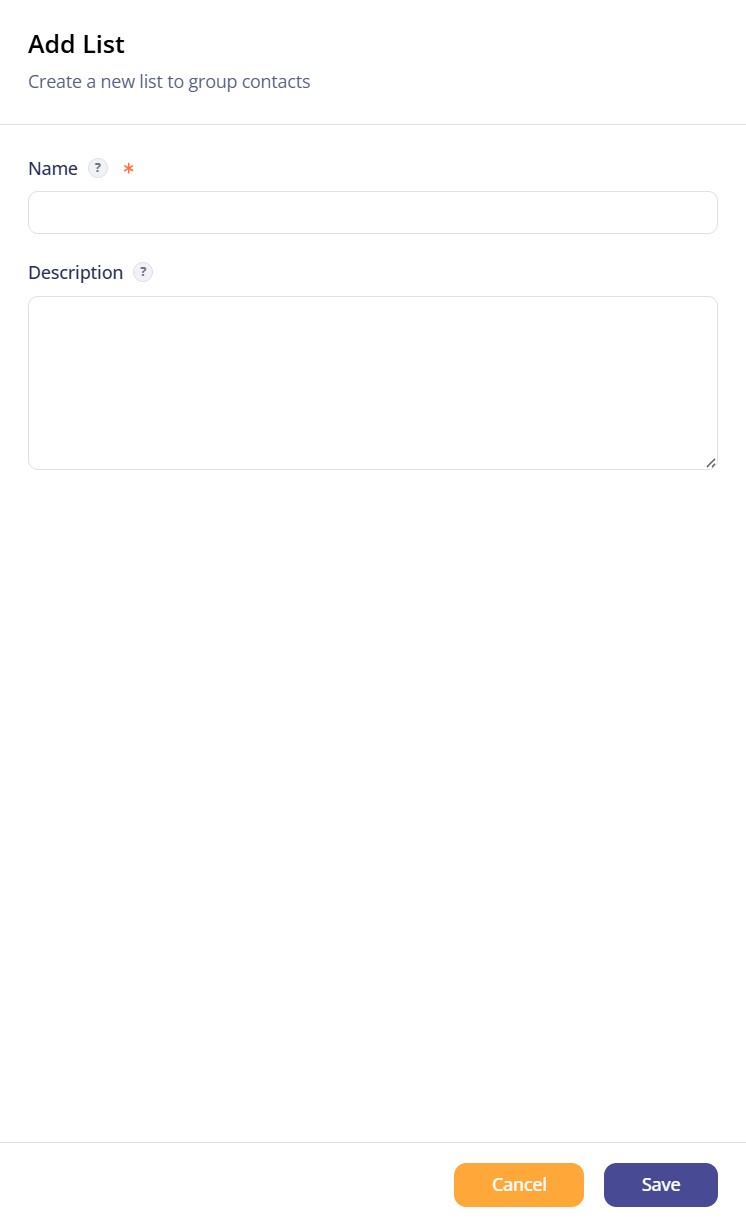
Once the inputs have been filled in, click "Save" and the list will be created.
You will now be back on the List page.

There are a few notable actions you can take:
- Apply Actions dropdown near top left. You can apply an action from the drop down list to one or more lists depending on how many are selected via the checkbox on the far left column. The available actions are fairly self-explanatory, but should you need assistance, please contact Pinpointe Support.
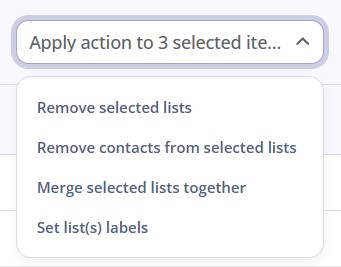
Here is a brief description of the various actions:
- Remove selected lists to delete one or more lists
- Remove contacts from selected list to delete all your contacts from your list(s).
- Merge selected lists together to create a new list from the selected lists. Does NOT delete the selected lists.
- Set list(s) labels to apply existing labels to one or more lists.
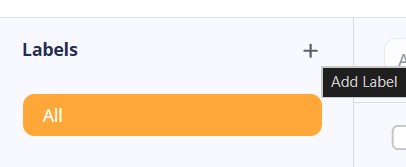
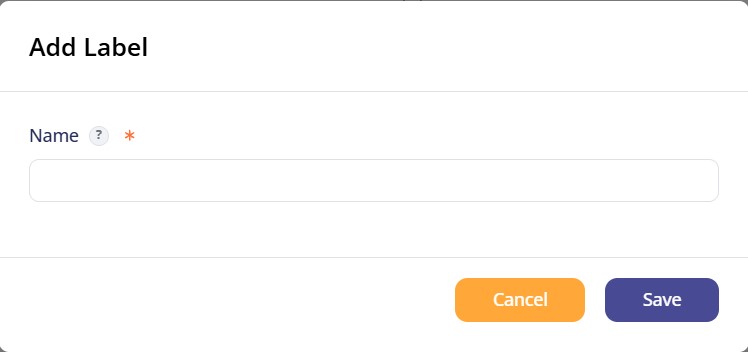
- Create a new Label by clicking the small "tag" icon near the top right of the page. Doing so brings up a modal that allows you add new Labels that can then be applied to your lists.

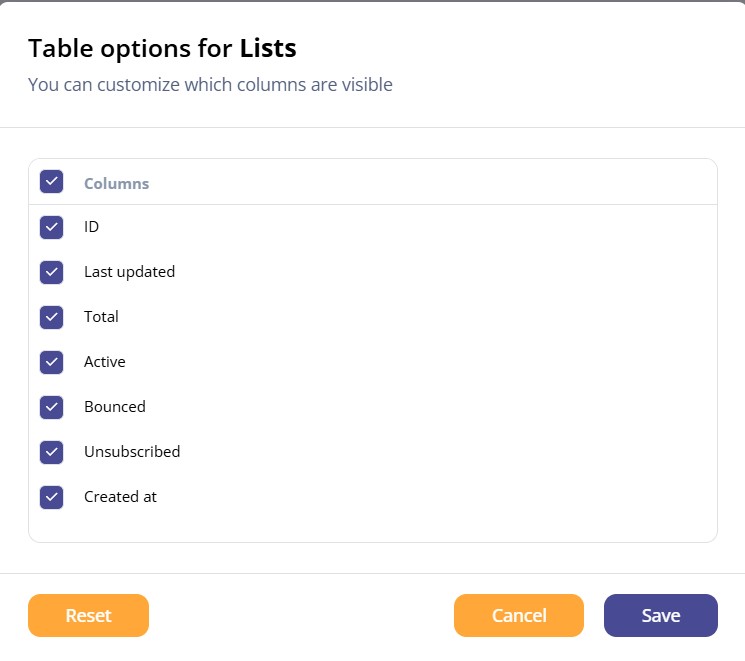
- Table Options - clicking the small "slider" icon at the far top right of the page brings up a modal that allows you to select which columns will be viewable when viewing the page.

- The ACTIONS column allows you to select from a series of options shown in a drop down list. Find the list you wish to work with, then click the three horizontal dots icon in the ACTIONS column for that list.
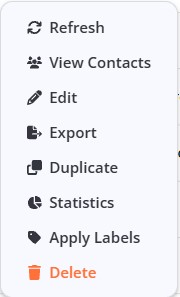
Here is a brief description of each action:
- Refresh - refreshes your list contact count to update the value for previous actions that affect the list population
- View contact - lets you view contacts in your list
- Edit - allows you to edit your list
- Export - allows you to export the contacts in your list
- Duplicate - lets you clone your list
- Statistics - let you see the statistics for your list
- Apply labels - lets you apply labels to your list. See the article titled XXXXXXX for more information on this action
- Delete - lets you delete your list
Additional columns on the LISTS page are:
- NAME - name of your list
- ID - the ID number for your list
- LAST UPDATED - timestamp of the most recent update
- TOTAL - the total amount of contacts in your list
- ACTIVE - how many active contacts are in your list
- BOUNCED - how many bounced contacts are in your list
- UNSUBSCRIBED - how many unsubscribed contacts are in your list
- CREATED AT - displays the timestamp of when the list was originally created