Split tests can be run to see how different variation of an email campaign perform. That way, yo can see if one is better than the rest.
First, create as many versions of your email as you need to run your Split Tests.
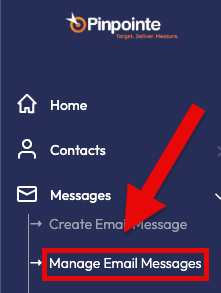
To create a Split Test, click "Manage Email Messages" under the Messages section of the left navigation menu (Fig 1).
Fig 1
At the top of the screen, you'll want to click "Split Tests" (Fig 2).
Fig 2

Now that you're on the Split Tests page, click the "Create" button on the right side of the screen (Fig 3).
Fig 3

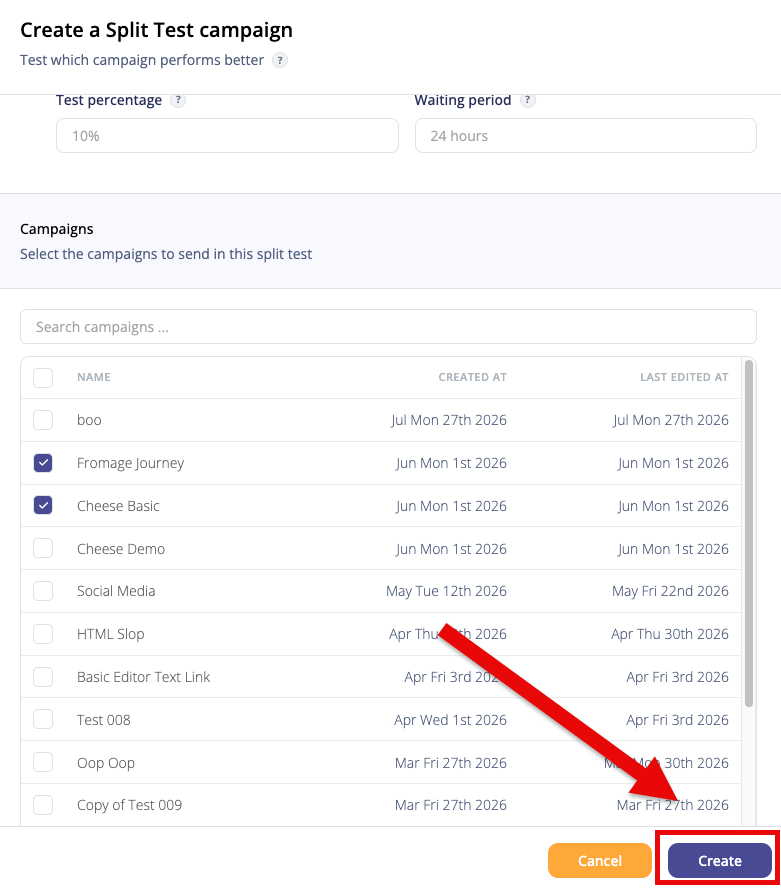
Now we can start creating a Split Test Campaign (Fig 4).
Here you need to give the Split Test Campaign a name, winning metric (number of people who opened the email or number of people who clicked a link), and campaigns you are including in the Split Tests.
You can also limit the results to a test percentage or set the waiting period when you get the results back.
When you're done, click the "Create" button to create your Split Test.
Fig 4
When you're done creating or updating a split test, you should see a notification like the one below (Fig 5).
Fig 5

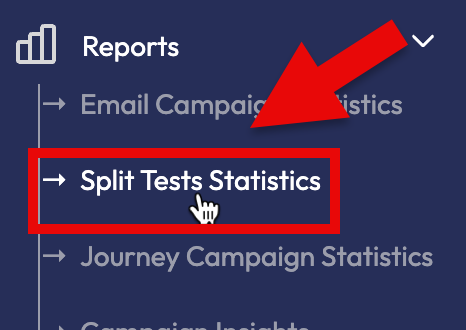
Statistics for Split Tests can be viewed under Reports -> Split Tests Statistics (Fig 8).
Fig 8