Content Blocks allow you to reuse content, including handlebars, among multiple campaigns. Content blocks can be just about anything, including text boxes, call-to-action buttons, or an image, that you can re-use in email campaigns without having to change the original source code.
Before you can add Content Blocks to your Email Campaign, we'll need to create some.
There are a few different ways to do this.
TABLE OF CONTENTS
New UI
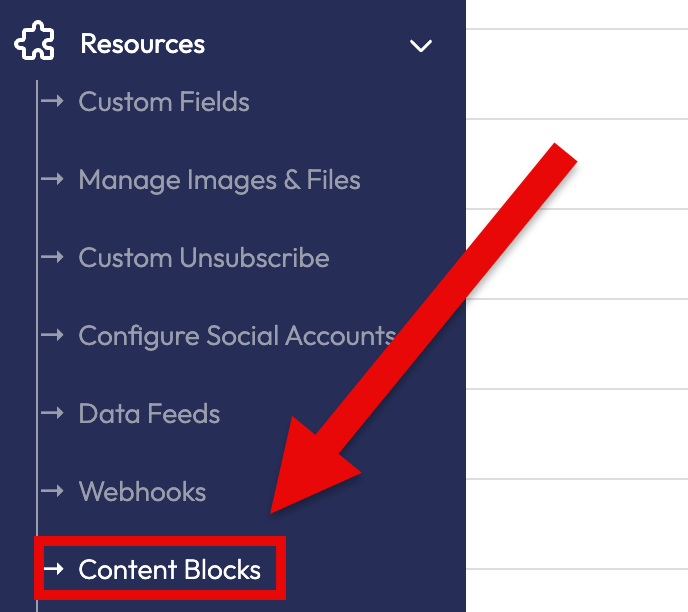
On the left navigation menu, go to Resources -> Content Blocks (Fig 1).
Fig 1
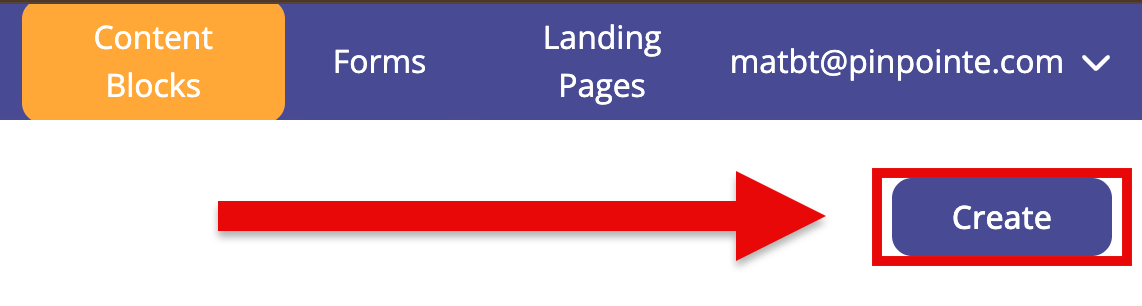
Click on the Create button to add a new Content Block (Fig 2).
Fig 2
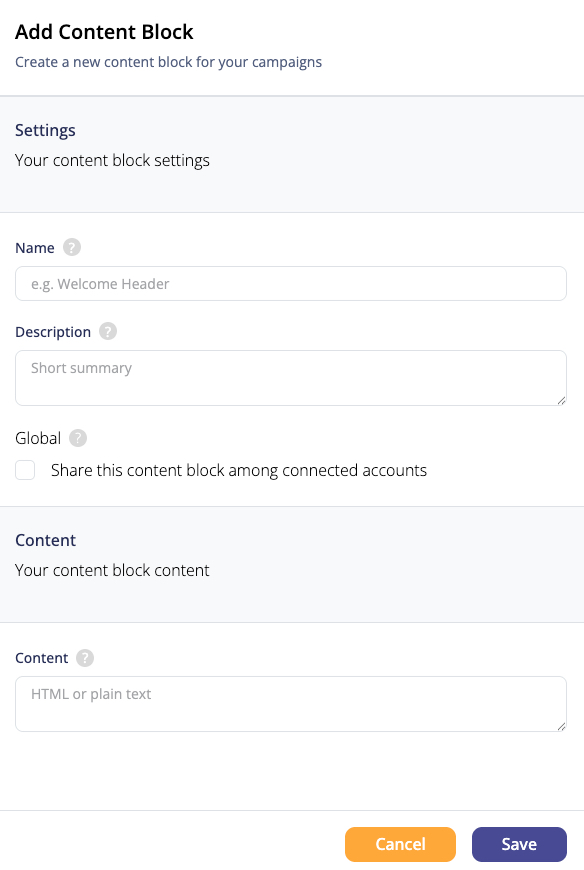
On the Add Content Block modal, there are two sections each with their own fields (Fig 3):
Fig 3
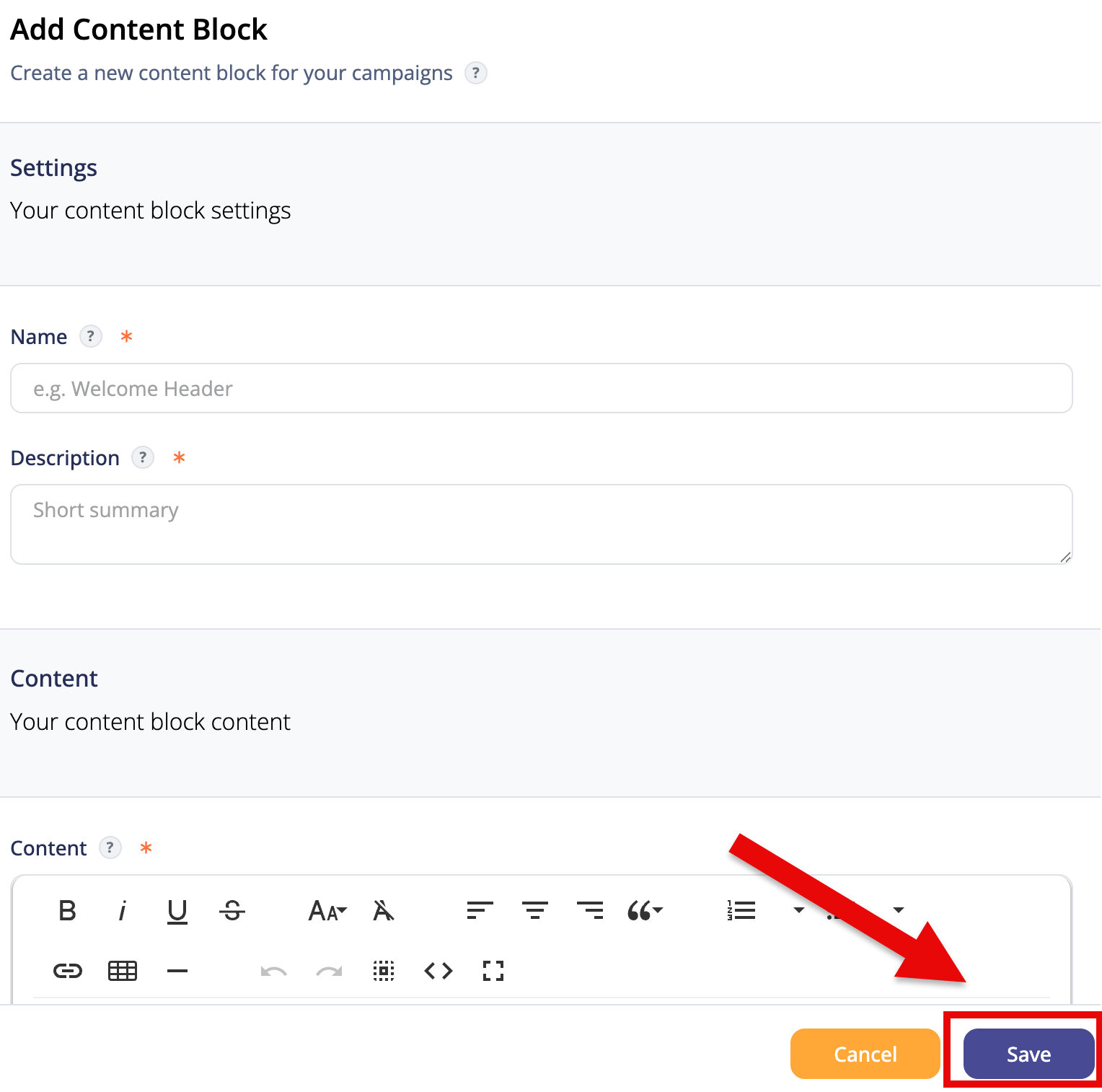
- Settings
- Name
- Name of your content block
- Description
- Description of your content block
- Global
- Toggle if the content block is global or not (can it be shared among connnected accounts?)
- Name
- Content
- Content
- The actual content of the content block
- Content
Note: If you are editing a more complex Content Block in the content field that requires double quotes in it, they must be entered and exited with a backslash
Example:
content: "{{#if (eq [First-Name] \"Tommy\")}}<p>Hello there. {{[First-Name]}}</p>{{else}}<p>What is your name?</p>{{/if}}"
Clicking the Cancel button closes the Add Content Block model, but doesn't save your changes.
Clicking the Save button saves your new Content Block.
Legacy UI
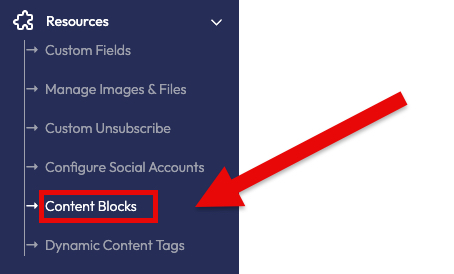
Fig 4
Click on the Create button to add a new Content Block (Fig 5).
Fig 5

On the Add Content Block modal, there are two sections each with their own fields (Fig 6):
Fig 6
To learn more about Content Blocks, click on the corresponding link below: